

Understanding HLS: A Practical Guide for Swift Developers
If you've ever wondered why video plays smoothly on your iPhone even when your network hiccups, you have HTTP Live Streaming (HLS) to thank. It's Apple's protocol for delivering video and audio content reliably over the internet, and it's been the backbone of streaming on Apple devices for years. Whether you're building a video-on-demand app, a live streaming feature, or an enterprise solution for a Fortune 500 company, understanding HLS will save you countless hours of debugging and frustration.
I've spent years implementing video streaming systems—from consumer apps to enterprise platforms handling 100K+ concurrent viewers. Here's everything I wish someone had told me when I started.
The Basics: How HLS Actually Works
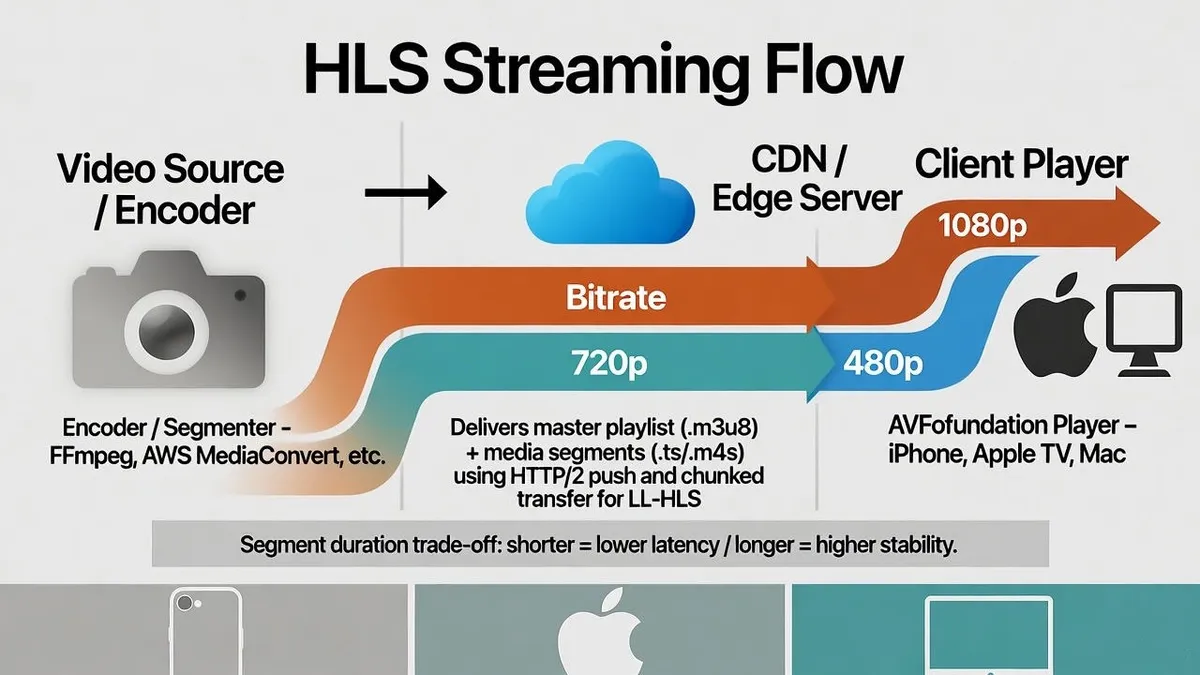
Think of HLS like breaking a long film into manageable chunks and bundling them with a map. Instead of downloading an entire video file, your app downloads small segments (usually 6 seconds each) and can dynamically switch between different quality levels as network conditions change. No buffering, no stuttering—just smooth playback.
The magic happens through two types of files:
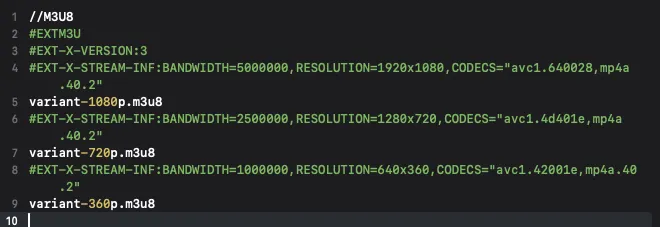
Master Playlist (M3U8): A text file listing all available quality variants. Your app reads this to understand what options are available.
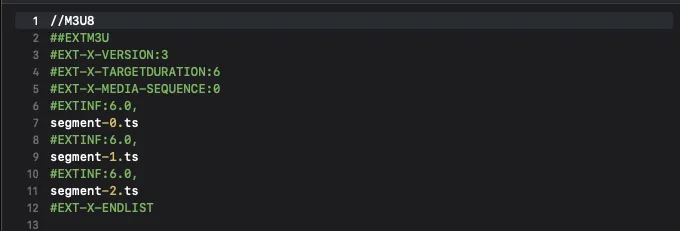
Media Playlists: Text files that describe which segments to play for each quality level.
Here's what a basic master playlist looks like:
And here's a media playlist for one of those variants:
Before we dive into the technical details, let's talk business value. If you're making decisions about video infrastructure, here's what HLS gives you:
Cost Savings: Modern codecs like HEVC can cut your CDN bandwidth costs by 40-50% compared to H.264. For a platform serving millions of views monthly, that's real money.
Global Reach: Adaptive bitrate means users in São Paulo on 3G and users in San Francisco on fiber both get smooth playback. You're not leaving money on the table due to geography.
Compliance & Security: Token-based authentication, detailed audit trails, and geographic restrictions come standard. Critical for healthcare, finance, and corporate training.
Future-Proof: Built by Apple, supported everywhere. Your investment in HLS infrastructure won't become obsolete next year.
The Principles Behind Live Streaming
Live streaming with HLS works differently from on-demand video, and understanding these principles is critical for production systems.
Segmentation and Latency Trade-off
Smaller segments mean lower latency but higher overhead (more files to manage). Typical segment durations are 6–10 seconds for broadcast quality, but Low-Latency HLS (LL-HLS) partial segments (~200ms). Modern LL-HLS relies on blocking playlist reloads and chunked transfer encoding.
Early versions experimented with HTTP/2 push, but this is no longer a dependency.
Choose based on your use case: corporate town hall? 10 seconds is fine. Live sports betting app? You need low-latency HLS.
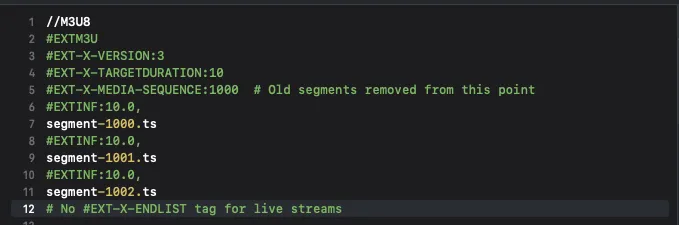
Sliding Window Playlist
For live streams, the playlist isn't finite. Instead, it's a sliding window showing the last N segments available. This means old segments fall off the playlist while new ones are added, allowing clients to always have something to download.
Adaptive Bitrate Streaming
This is where HLS really shines. Your encoder produces multiple quality variants simultaneously. AVFoundation watches network conditions and automatically switches between them. A viewer starting on 4G might drop to 1080p as they enter a tunnel, then jump back to 4K when they exit. All seamless, all automatic.
Keyframe Alignment (This Will Save You Hours of Debugging)
This is crucial. Every video segment across all quality variants must start with a keyframe at exactly the same time. If the 4K segment's keyframe is offset by 100ms from the 720p variant's, you'll see visible glitches when switching.
Many encoding issues come down to this one thing. Get keyframe alignment right from day one.
Video Codec Ecosystem
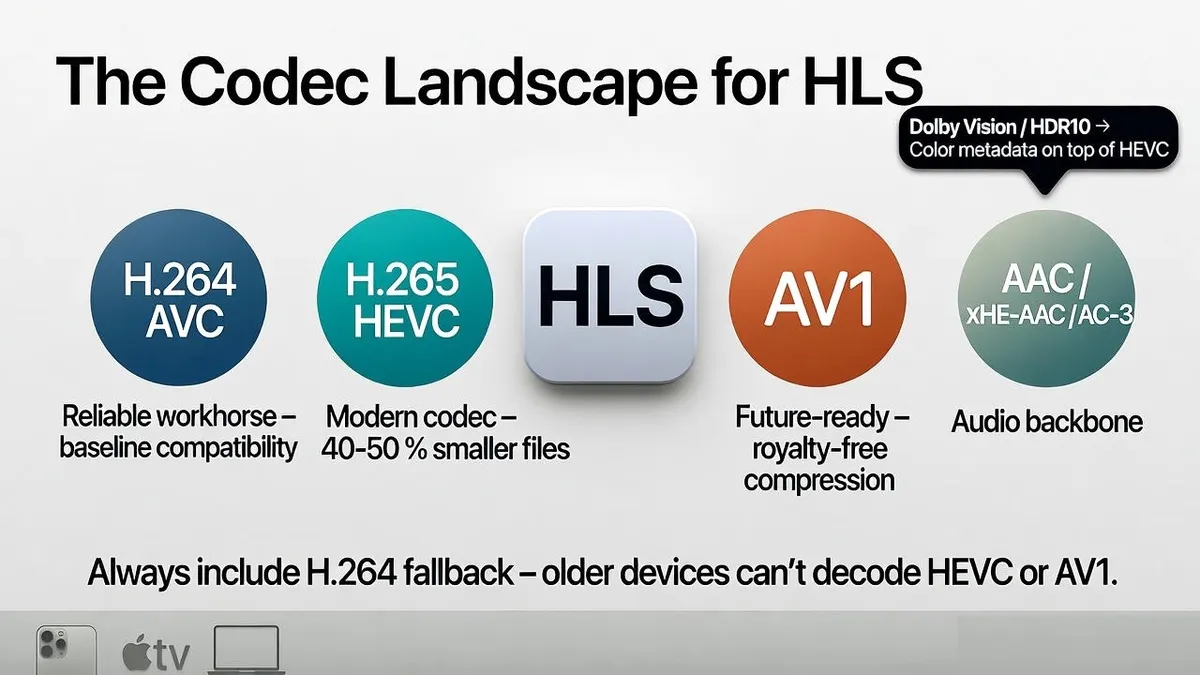
Let's talk codecs in detail because this choice impacts everything: file size, latency, device compatibility, and encoding costs.
H.264 (AVC) - The Reliable Workhorse
What it is: The industry standard since 2003. It's in basically every video device on Earth.
When to use: Always include H.264 variants. This is your baseline. If you're supporting devices older than iPhone 8, H.264 might be your only option.
Technical profile:
- Main Profile for standard content (sufficient for most use cases)
- High Profile for more compression

Real-world use: Netflix still serves H.264 to some users. It's not going anywhere. If you're building for enterprise video conferencing or corporate training, H.264 is your safe bet.
HEVC (H.265) - The Modern Choice
What it is: The modern codec. Compresses video about 40-50% better than H.264 at the same quality. That's not marketing speak—it's real bandwidth savings.
When to use: iPhone X and later, all modern Macs. If your primary audience is current-generation Apple hardware, HEVC is a no-brainer for bandwidth savings.
Technical profile:
- Main Profile for SDR (standard dynamic range)
- Main 10 Profile for HDR

⚠️ Key limitation: Always include H.264 fallback. Always. Do not put only HEVC in production and assume older devices will handle it gracefully. They won't. I don't care if your entire user base claims to have iPhone 15s—someone will try to watch on an old iPad.
Bitrate: You can typically use 60-80% of your H.264 bitrate and maintain similar quality. Test thoroughly before going to production.
Real-world use: Apple's own services use HEVC heavily for 4K HDR content to manage bandwidth. This is where you see the biggest wins—streaming 4K over cellular becomes feasible.

VP9 and AV1 - The Future (Sort Of)
VP9: Open-source codec comparable to H.265. Some streaming platforms use this. Apple devices support it, but it's not Apple's preferred direction.

AV1: The future of internet video. Incredible compression (20% better than HEVC), royalty-free. The problem? Encoding is slow (real-time encoding on typical hardware is only recently becoming viable) and decoding on older devices is weak.
Real-world use: YouTube uses VP9 and AV1. If you're building a next-generation system, research AV1—it's coming. But for today's production systems, it's not mainstream on Apple platforms yet.
Dolby Vision and HDR10
These aren't codecs—they're color spaces and metadata formats overlaid on top of HEVC.

HDR10: More common. Works on most HDR-capable displays. Uses Main 10 Profile HEVC.

Dolby Vision: Premium tier. Requires special licensing. Used by streaming services for prestige content.
Real-world decision: Streaming 4K movies? Dolby Vision. Corporate training? Unnecessary. Internal town halls? Standard dynamic range is fine.
Audio Codec Deep Dive
Audio is often overlooked, but it's crucial for a good experience. Bad audio will ruin great video faster than the reverse. Here are your options with practical guidance:
Efficient Streaming (for constrained networks)
xHE-AAC
- Bitrate: 24-64 kbps for stereo
- Use case: Users on cellular, developing markets, emergency broadcast systems
- Quality: Acceptable, not transparent
- Profile: Requires decoding support (available on iOS 11+)
HE-AAC v1/v2
- Bitrate: 32-96 kbps for stereo
- Use case: Standard definition video on cellular, podcasts with video
- Quality: Good
- Profile: Widely supported
AAC-LC (Your Default Choice)
- Bitrate: 96-160 kbps for stereo (above 160 kbps, it gets wasteful)
- Use case: Standard video delivery, the "workhorse" codec
- Quality: Transparent at 128+ kbps
- Profile: Universal support
Quality-Focused
Dolby Digital (AC-3)
- Bitrate: 128-384 kbps depending on surround channels (5.1, 7.1)
- Use case: Premium VOD, AppleTV+ originals, theatrical content
- Quality: Professional
- Channels: Up to 5.1 surround
- Real-world: Streaming 4K movies? Use this for premium viewers
Dolby Digital Plus (E-AC-3)
- Bitrate: More efficient than AC-3, 64-256 kbps for 5.1
- Use case: AppleTV+ content, high-end broadcasts
- Quality: Professional
- Channels: Up to 7.1 surround
- Real-world: Enterprise video with premium audio
FLAC / Apple Lossless
- Bitrate: 500+ kbps for stereo
- Use case: Audiobooks, music videos, high-end podcasts
- Quality: Lossless (bit-perfect reproduction)
- Real-world: Rare in streaming, but sometimes used by music services
A Practical Strategy
Here's how I'd approach audio in a real system:
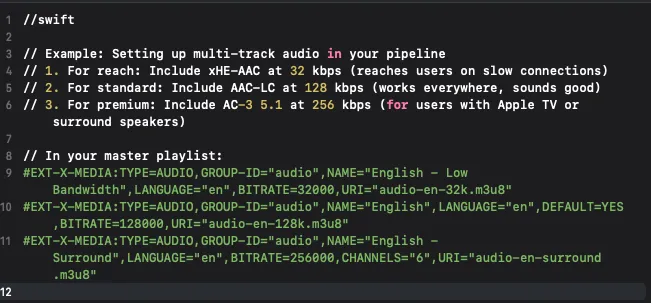
This gives you reach (xHE-AAC for anyone, anywhere), quality (AAC-LC for most), and luxury (AC-3 for premium viewers).
Creating HLS Streams with FFmpeg
FFmpeg is the Swiss Army knife of video encoding. Here's how you'd actually create HLS streams in production:
Simple Single-Bitrate Stream
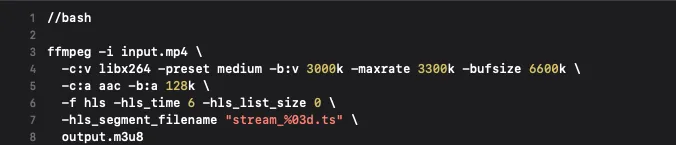
What this does:
- -c:v libx264: H.264 video encoder
- -preset medium: Speed/quality tradeoff (fast, medium, slow)
- -b:v 3000k: Target bitrate 3000 kbps
- -maxrate 3300k -bufsize 6600k: Enforce bitrate compliance
- -c:a aac -b:a 128k: Audio codec and bitrate
- -f hls: Output format
- -hls_time 6: 6-second segments
- -hls_list_size 0: Keep all segments (use a number for rolling window in live streams)
- -hls_segment_filename “stream_%03d.ts”: (optional) Set deterministic segment names — recommended for CDNs that require explicit file mapping.
Multi-Bitrate Streaming (Practical Production Setup)
For real HLS delivery, you need multiple qualities. Here's the proper way:
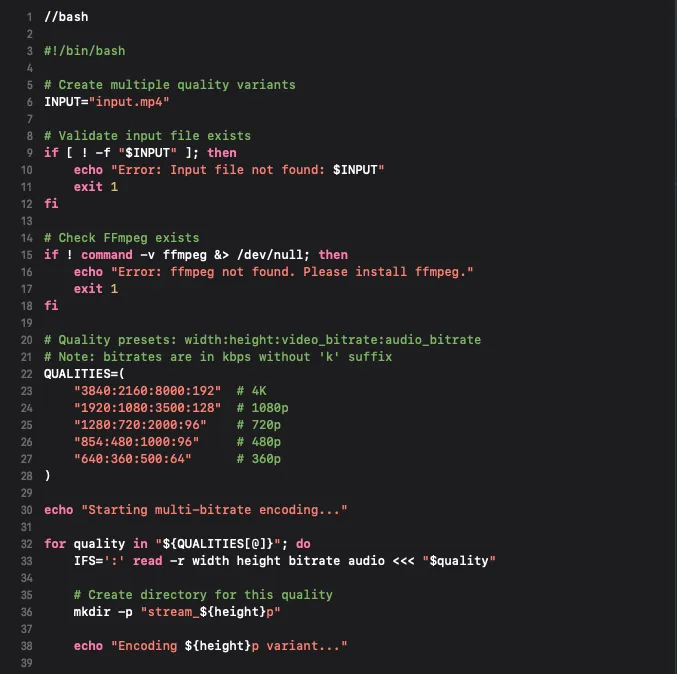
Key additions:
- Input validation prevents encoding errors
- FFmpeg installation check
- -g 120 -keyint_min 120: Force keyframes every 120 frames (4 seconds at 30fps). This ensures perfect alignment across all quality variants—critical for smooth quality switching.
- -sc_threshold 0: Disable scene-cut detection to prevent unexpected keyframes
Advanced: Live Streaming with Input Validation
For live streaming, you're encoding in real-time. This requires different considerations:
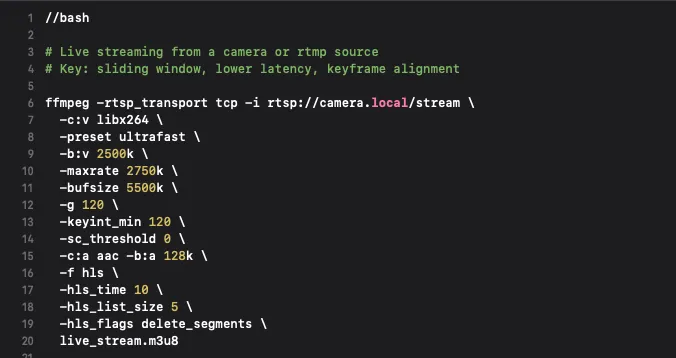
Key live-streaming flags:
- -preset ultrafast: Speed over quality (you need real-time encoding)
- -g 120: Keyframe every 120 frames (at 30fps = 4 seconds)
- -sc_threshold 0: Disable scene-cut detection (prevents unexpected keyframes that break alignment)
- -hls_list_size 5: Keep only last 5 segments (rolling window)
- -hls_flags delete_segments: Clean up old files automatically
HEVC Variant (for modern audiences) - CORRECTED
Important: Modern HLS implementations should use fMP4 (fragmented MP4) format instead of MPEG-TS, especially for HEVC content. This is what Apple's mediastreamvalidator expects and is the current industry standard.
Corrected HEVC Command
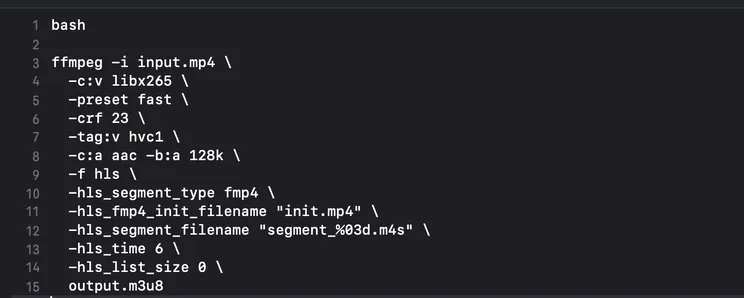
Multi-Bitrate HEVC with fMP4
For production-grade multi-bitrate HEVC streaming:
#!/bin/bash

input="input.mp4"

# 1080p HEVC
ffmpeg -i "$input" \
  -c:v libx265 -preset fast -tag:v hvc1 \
  -b:v 2000k -maxrate 2200k -bufsize 4400k \
  -s 1920x1080 \
  -g 120 -keyint_min 120 -sc_threshold 0 \
  -c:a aac -b:a 128k \
  -f hls \
  -hls_segment_type fmp4 \
  -hls_time 6 \
  -hls_list_size 0 \
  -hls_fmp4_init_filename "1080p_init.mp4" \
  -hls_segment_filename "1080p_%03d.m4s" \
  1080p.m3u8

# 720p HEVC
ffmpeg -i "$input" \
  -c:v libx265 -preset fast -tag:v hvc1 \
  -b:v 1000k -maxrate 1100k -bufsize 2200k \
  -s 1280x720 \
  -g 120 -keyint_min 120 -sc_threshold 0 \
  -c:a aac -b:a 96k \
  -f hls \
  -hls_segment_type fmp4 \
  -hls_time 6 \
  -hls_list_size 0 \
  -hls_fmp4_init_filename "720p_init.mp4" \
  -hls_segment_filename "720p_%03d.m4s" \
  720p.m3u8

# 480p HEVC
ffmpeg -i "$input" \
  -c:v libx265 -preset fast -tag:v hvc1 \
  -b:v 500k -maxrate 550k -bufsize 1100k \
  -s 854x480 \
  -g 120 -keyint_min 120 -sc_threshold 0 \
  -c:a aac -b:a 64k \
  -f hls \
  -hls_segment_type fmp4 \
  -hls_time 6 \
  -hls_list_size 0 \
  -hls_fmp4_init_filename "480p_init.mp4" \
  -hls_segment_filename "480p_%03d.m4s" \
  480p.m3u8

# Create master playlist
cat > master.m3u8 << EOF
#EXTM3U
#EXT-X-VERSION:7
#EXT-X-STREAM-INF:BANDWIDTH=2200000,RESOLUTION=1920x1080,CODECS="hvc1.1.6.L120.90,mp4a.40.2"
1080p.m3u8
#EXT-X-STREAM-INF:BANDWIDTH=1100000,RESOLUTION=1280x720,CODECS="hvc1.1.6.L120.90,mp4a.40.2"
720p.m3u8
#EXT-X-STREAM-INF:BANDWIDTH=550000,RESOLUTION=854x480,CODECS="hvc1.1.6.L120.90,mp4a.40.2"
480p.m3u8
EOF

echo "HEVC fMP4 encoding complete!"
Notes on HEVC with fMP4:
HEVC Encoding Parameters:
- -preset fast: HEVC encoding is slower than H.264, adjust accordingly (use fast or medium for real-time; slow or slowerfor VoD quality)
- -tag:v hvc1: Important for Apple device compatibility (required for iOS/tvOS)
- Bitrate: Roughly 60% of equivalent H.264 (e.g., 2000k HEVC ≈ 3300k H.264 quality)
fMP4 Container Parameters:
- -hls_segment_type fmp4: Critical! This forces fragmented MP4 format instead of the default MPEG-TS
- -hls_fmp4_init_filename: Specifies the initialization segment (contains codec setup data)
- Segments use .m4s extension: Standard convention for fMP4 media segments
Why fMP4 vs MPEG-TS?
fMP4 Advantages (Recommended):
- Required for HEVC to pass Apple's mediastreamvalidator
- Better seeking performance - initialization data is separate
- Lower overhead - shared init segment across all fragments
- HEVC should use fMP4, not MPEG-TS.
- Strongly recommended for modern HLS and required for HEVC validation.
- Better compatibility with modern streaming infrastructure
- More efficient for adaptive streaming
MPEG-TS (Legacy):
- Older format, still works for H.264
- Higher overhead per segment
- Not recommended for HEVC on Apple platforms
- May cause validation errors with modern Apple tools
What changes in the playlist:
Your media playlist will include an #EXT-X-MAP directive pointing to the initialization segment:
//M3u8
#EXTM3U
#EXT-X-VERSION:7
#EXT-X-TARGETDURATION:6
#EXT-X-MAP:URI="init.mp4"
#EXTINF:6.0,
segment_000.m4s
#EXTINF:6.0,
segment_001.m4s
#EXTINF:6.0,
segment_002.m4s
#EXT-X-ENDLIST
The init.mp4 file contains:
- Codec initialization data
- Video/audio parameters
- Metadata shared across all segments
This is what makes fMP4 more efficient than TS—the initialization data isn't repeated in every segment.
Backward Compatibility
For older devices (pre-iOS 10):
If you need to support devices older than iOS 10 (released in 2016), you may need to provide MPEG-TS fallback variants. However, in 2025, this is rarely necessary. The installed base of iOS 10+ devices is effectively 100%.
If you absolutely need TS fallback for legacy support:
//bash
# Legacy H.264 with MPEG-TS (for very old devices)
ffmpeg -i input.mp4 \
  -c:v libx264 -preset medium \
  -b:v 1000k -maxrate 1100k -bufsize 2200k \
  -c:a aac -b:a 96k \
  -f hls \
  -hls_time 6 \
  -hls_segment_filename "legacy_%03d.ts" \
  legacy.m3u8
Then reference it in your master playlist with lower priority.
Common Issues & Troubleshooting
Issue: mediastreamvalidator fails with HEVC stream
Cause: Using MPEG-TS format instead of fMP4
Solution: Add -hls_segment_type fmp4 to your FFmpeg command
Issue: Playback works on Safari but fails on iOS devices
Cause: Missing or incorrect -tag:v hvc1 parameter
Solution: Always include -tag:v hvc1 for HEVC streams targeting Apple devices
Issue: Segments don't have initialization data
Cause: Missing -hls_fmp4_init_filename parameter
Solution: Explicitly specify the init filename: -hls_fmp4_init_filename "init.mp4"
Issue: Quality switches cause visible glitches
Cause: Keyframes not aligned across variants
Solution: Use identical -g and -keyint_min values across all quality variants, and always include -sc_threshold 0
Validation
After encoding, validate your stream:
//bash
# Validate the stream (requires Apple's HLS tools)
mediastreamvalidator https://your-cdn.com/master.m3u8

# Check for common issues:
# ✓ Correct CODECS attribute in master playlist
# ✓ fMP4 format detected (not TS)
# ✓ Initialization segments present
# ✓ Keyframe alignment across variants
# ✓ Bitrate compliance
Production Checklist
Before deploying HEVC HLS streams:
- Using fMP4 format (-hls_segment_type fmp4)
- Initialization segments created (-hls_fmp4_init_filename)
- Correct HEVC tag (-tag:v hvc1)
- Keyframes aligned across all variants (-g, -keyint_min, -sc_threshold 0)
- CODECS attribute correct in master playlist (hvc1.1.6.L120.90)
- Validated with mediastreamvalidator
- Tested on real iOS devices
- H.264 fallback variants included for maximum compatibility
Acknowledgments
Special thanks to Justin Fanning for catching the critical TS/fMP4 oversight in the original article. This kind of real-world feedback from experienced developers is what makes technical content better and helps the entire community avoid production issues.
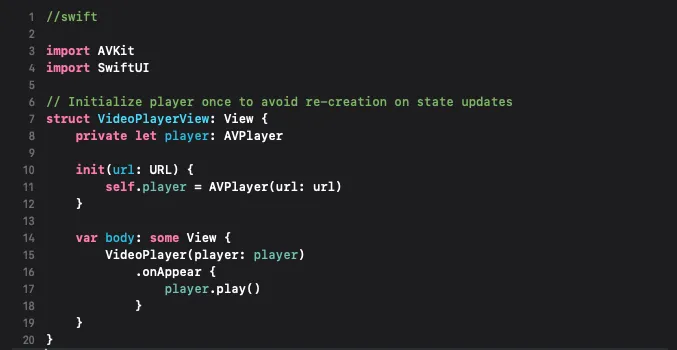
Using HLS in Apple TV Apps
Apple TV (the streaming platform, not just the device) is where HLS really shines. Here's how to integrate it into tvOS apps:
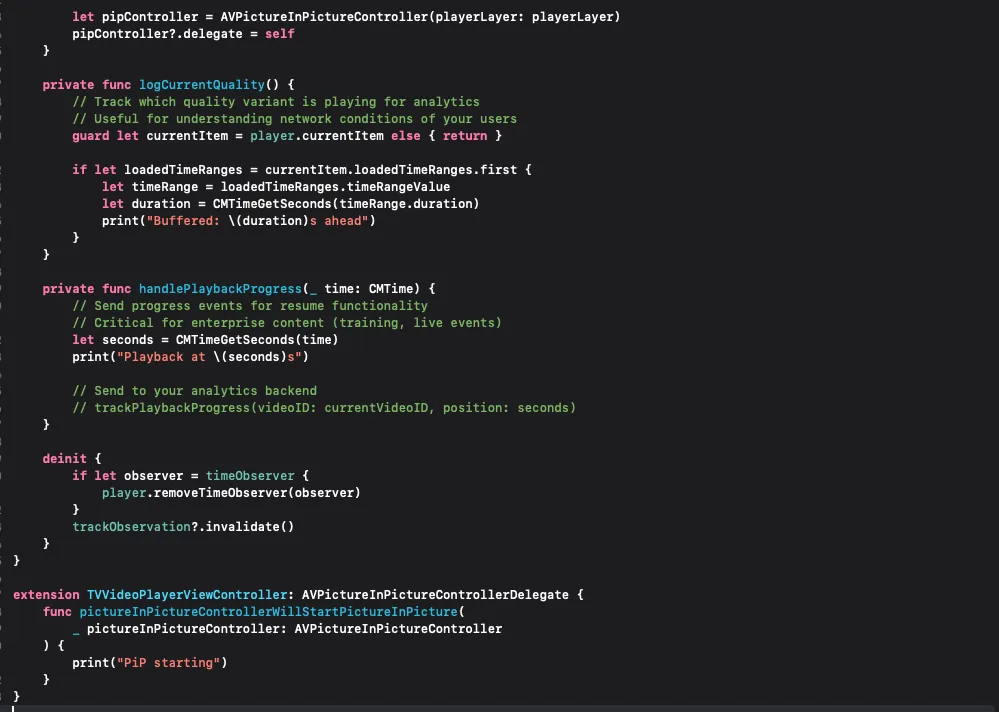
Advanced tvOS Implementation with Analytics
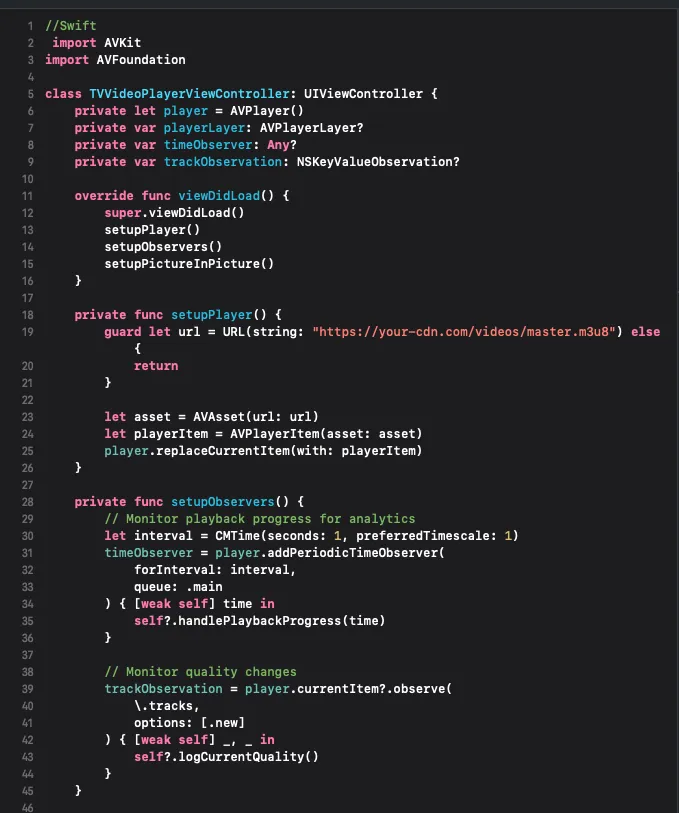
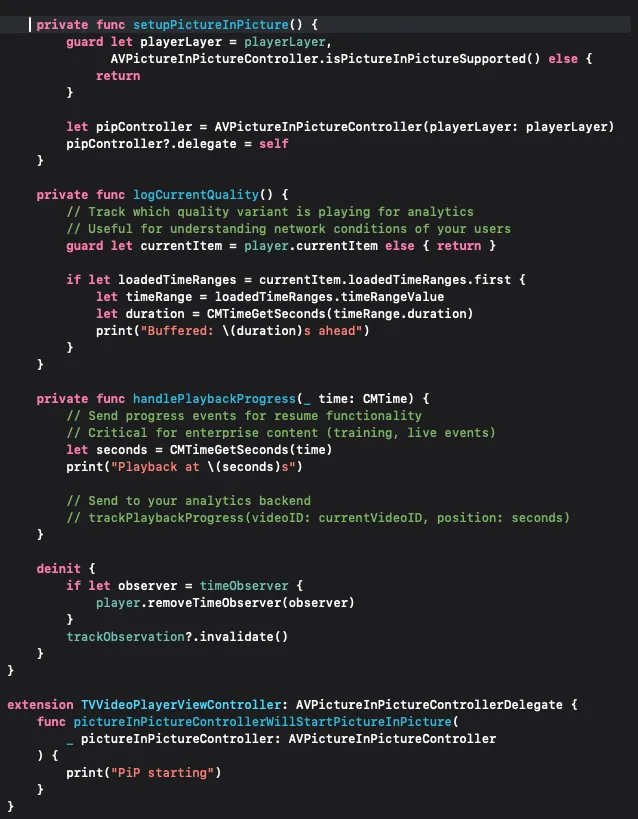
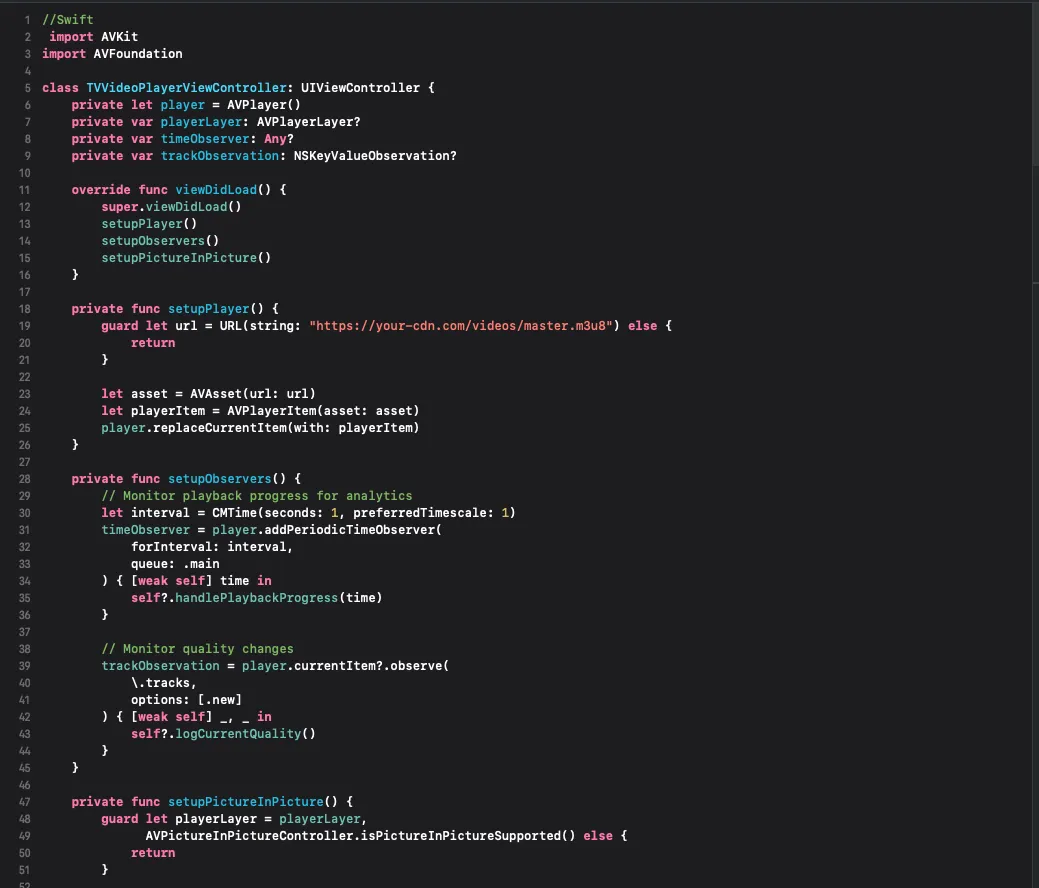
For production apps with custom controls and analytics:
Apple TV Best Practices
- Always provide artwork: Use high-resolution images optimized for the 10-foot experience (at least 1920x1080)
- Implement robust error handling: Network interruptions are more common than you'd think
- Support picture-in-picture: Users sometimes return to the home screen mid-video
- Track viewing analytics: Know where users drop off (every percent matters in enterprise)
- Cache intelligently: Download upcoming segments to local storage for smoother playback
HLS in Enterprise and Business Systems
This is where HLS really proves its value. Fortune 500 companies are using it for everything from corporate training to live earnings calls to internal communications.
Corporate Training and Compliance
Challenge: Distribute compliance training videos to 50,000 employees across multiple continents with different network conditions.
HLS Solution:
- Multiple quality variants ensure everyone can watch regardless of network
- Secure streaming with token-based authentication prevents unauthorized access
- Detailed analytics track who watched what, for how long, and when they dropped off
- Can be integrated with your LMS (Learning Management System)
Live Event Broadcasting
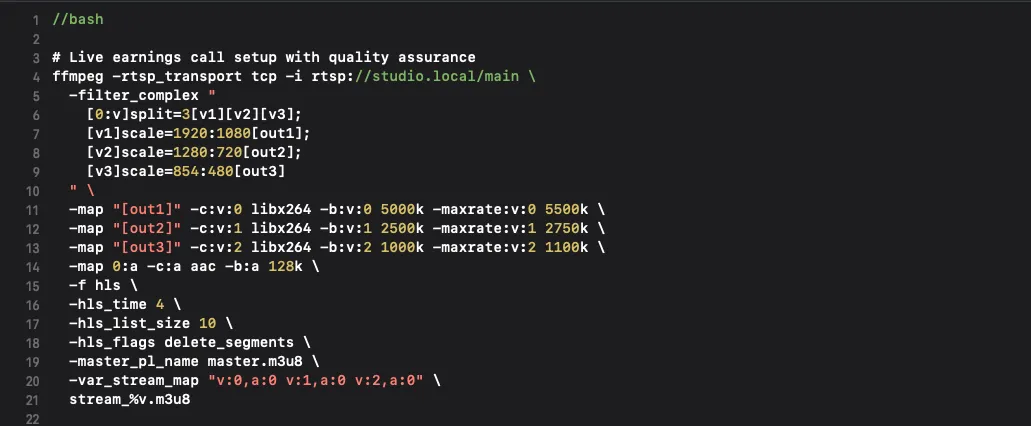
Challenge: Live stream a quarterly earnings call to all stakeholders, supporting hundreds of concurrent viewers with varying network speeds.
HLS Solution:
- Real-time encoding creates multiple quality variants as event happens
- Low-latency HLS reduces delay to under 10 seconds (vs 30-60 with other protocols)
- DVR functionality lets latecomers start from the beginning without waiting for archive
- Closed captions auto-generated or manually added for accessibility and international audiences
Internal Communications and Town Halls
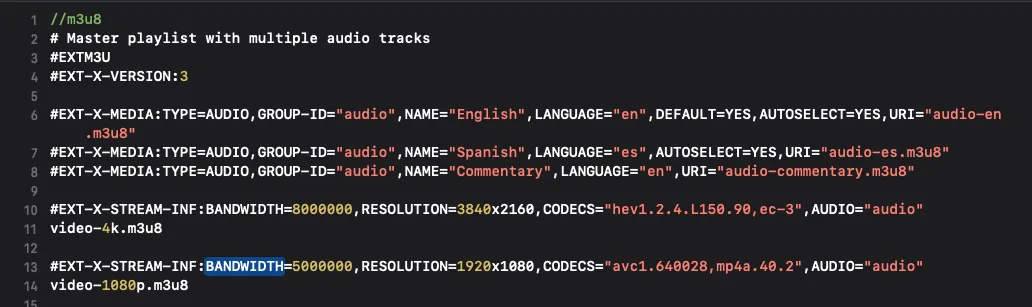
Challenge: CEO records town hall; needs to be available on-demand for employees who missed it, with optional regional commentary tracks.
HLS Solution:
- VoD (Video on Demand) delivery with DVR-like navigation
- Multiple audio tracks for different languages or presenter commentary
- Automatic transcription available for accessibility
- Integration with company directory for personalized recommendations
Medical, Legal, and Compliance Broadcasting
Challenge: Broadcast confidential training or compliance material that must have audit trails and geographic restrictions.
HLS Solution:
- Token-based authentication with expiration
- Geographic IP blocking ensures content stays in-region
- Detailed logging tracks every view, pause, rewind, and metadata access
- DRM protection available through Fairplay on Apple devices
This is where HLS becomes enterprise-grade infrastructure, not just video playback.
DRM protection available through FairPlay on Apple devices. (For developers exploring protected playback workflows, Apple provides AVContentKeySession to manage FairPlay license acquisition.)
Captions: Don't Forget About Accessibility
Seriously, don't skip captions. It's not just about compliance—it's about making your content accessible to everyone. Here are your options:
CEA-608/708 closed captions: Embedded directly in the video. These carry semantic information (like speaker identification) that regular subtitles don't, making them genuinely accessible for deaf viewers. This is the professional standard.
WebVTT: Simple text-based subtitles in separate files. Works great for translations and is required for Safari on iOS.
IMSC: More advanced than WebVTT if you need complex styling and positioning.
Include captions in your master playlist like this:

For WebVTT subtitles:

Putting It Together in Swift
Here's how you'd actually use HLS in a real app with proper error handling, quality monitoring, and analytics:
//swift
import AVFoundation
import AVKit
import Combine

class VideoViewController: UIViewController {
    private let player = AVPlayer()
    private var playerViewController: AVPlayerViewController?
    private var cancellables = Set<AnyCancellable>()
    private var timeObserver: Any?

    override func viewDidLoad() {
        super.viewDidLoad()
        setupPlayer()
        setupObservers()
    }

    private func setupPlayer() {
        // Your HLS stream URL
        guard let url = URL(string: "https://example.com/stream.m3u8") else {
            showError("Invalid stream URL")
            return
        }

        let asset = AVAsset(url: url)
        let playerItem = AVPlayerItem(asset: asset)

        // AVPlayer automatically handles variant selection based on bandwidth
        player.replaceCurrentItem(with: playerItem)

        // Allow smoother playback recovery during short stalls
        player.automaticallyWaitsToMinimizeStalling = true

        // Setup player view controller
        playerViewController = AVPlayerViewController()
        playerViewController?.player = player
        playerViewController?.delegate = self

        if let controller = playerViewController {
            addChild(controller)
            view.addSubview(controller.view)
            controller.view.frame = view.bounds
            controller.didMove(toParent: self)

            player.play()
        }
    }

    private func setupObservers() {
        // Monitor playback state
        player.publisher(for: \.timeControlStatus)
            .sink { [weak self] status in
                self?.handleTimeControlStatus(status)
            }
            .store(in: &cancellables)

        // Monitor current item
        player.publisher(for: \.currentItem)
            .sink { [weak self] item in
                self?.setupItemObservers(item)
            }
            .store(in: &cancellables)

        // Track playback progress
        let interval = CMTime(seconds: 1, preferredTimescale: 1)
        timeObserver = player.addPeriodicTimeObserver(
            forInterval: interval,
            queue: .main
        ) { [weak self] time in
            self?.handlePlaybackProgress(time)
        }
    }

    private func setupItemObservers(_ item: AVPlayerItem?) {
        guard let item = item else { return }

        // Monitor buffer status
        item.publisher(for: \.isPlaybackBufferEmpty)
            .sink { isEmpty in
                if isEmpty { print("Buffer empty - rebuffering") }
            }
            .store(in: &cancellables)

        // Monitor loaded time ranges
        item.publisher(for: \.loadedTimeRanges)
            .sink { [weak self] ranges in
                self?.handleBufferStatus(ranges)
            }
            .store(in: &cancellables)

        // Monitor stalled playback
        NotificationCenter.default.publisher(for: .AVPlayerItemPlaybackStalled)
            .sink { _ in
                print("Playback stalled - network issue detected")
            }
            .store(in: &cancellables)
    }

    private func handleTimeControlStatus(_ status: AVPlayer.TimeControlStatus) {
        switch status {
        case .playing:
            print("Playing - network good")
        case .paused:
            print("Paused")
        case .waitingToPlayAtSpecifiedRate:
            print("Buffering - network congestion detected")
        @unknown default:
            break
        }
    }

    private func handleBufferStatus(_ ranges: [NSValue]) {
        guard let currentTime = player.currentItem?.currentTime() else { return }

        let bufferedSeconds = ranges
            .compactMap { $0.timeRangeValue }
            .filter { $0.containsTime(currentTime) }
            .map { CMTimeGetSeconds($0.duration) }
            .reduce(0, +)

        print("Buffered \(bufferedSeconds)s ahead")
    }

    private func handlePlaybackProgress(_ time: CMTime) {
        let seconds = CMTimeGetSeconds(time)
        print("Playback progress: \(seconds)s")
    }

    private func showError(_ message: String) {
        let alert = UIAlertController(
            title: "Playback Error",
            message: message,
            preferredStyle: .alert
        )
        alert.addAction(UIAlertAction(title: "OK", style: .default))
        present(alert, animated: true)
    }

    deinit {
        if let observer = timeObserver {
            player.removeTimeObserver(observer)
        }
    }
}

extension VideoViewController: AVPlayerViewControllerDelegate {
    func playerViewController(
        _ playerViewController: AVPlayerViewController,
        willBeginFullScreenPresentationWithAnimationCoordinator coordinator: UIViewControllerTransitionCoordinator
    ) {
        print("Entering fullscreen")
    }
}Monitor Quality and Bandwidth
Understanding what's happening during playback is critical for debugging and improving user experience:
  //Swift
extension VideoViewController {
    private var statusObservation: NSKeyValueObservation?
    private var mediaSelectionObservation: NSKeyValueObservation?

    private func monitorPlaybackQuality() {
        // Monitor time control status
        statusObservation = player.observe(
            \.timeControlStatus,
            options: [.new]
        ) { [weak self] player, _ in
            guard let self = self else { return }
            switch player.timeControlStatus {
            case .playing:
                print("Playing - network good")
            case .paused:
                print("Paused")
            case .waitingToPlayAtSpecifiedRate:
                print("Buffering - network congestion detected")
            @unknown default:
                break
            }
        }

        // Log current quality variant
        mediaSelectionObservation = player.currentItem?.observe(
            \.preferredMediaSelection,
            options: [.new]
        ) { [weak self] item, _ in
            guard let self = self else { return }

            if let preferredMediaSelection = item.preferredMediaSelection {
                // Get visual (video) track
                if let visualGroup = item.asset.mediaSelectionGroup(
                    forMediaCharacteristic: .visual
                ) {
                    if let videoTrack = preferredMediaSelection.selectedMediaOption(
                        in: visualGroup
                    ) {
                        print("Playing video: \(videoTrack.displayName)")
                    }
                }

                // Get audible (audio) track
                if let audibleGroup = item.asset.mediaSelectionGroup(
                    forMediaCharacteristic: .audible
                ) {
                    if let audioTrack = preferredMediaSelection.selectedMediaOption(
                        in: audibleGroup
                    ) {
                        print("Playing audio: \(audioTrack.displayName)")
                    }
                }
            }
        }
    }

    func cleanupObservers() {
        statusObservation?.invalidate()
        mediaSelectionObservation?.invalidate()
    }
}Testing Your Streams
Before you ship anything, validate your HLS streams. Apple provides the Media Streaming Validator tool—use it religiously. It'll catch bitrate mismatches, codec problems, and playlist structure issues that could cause playback failures in the wild.
Use Apple's Media Streaming Validator
What is MediaStreamValidator?
Ever wondered how Apple engineers ensure your live streams run flawlessly on every device?
MediaStreamValidator is Apple’s command-line tool for testing and validating HTTP Live Streaming (HLS) content before it reaches production. It goes beyond basic checks—analyzing playlist structures, verifying segment consistency, and catching protocol compliance issues that could compromise playback quality.
In short, it’s a developer’s behind-the-scenes ally for building reliable, broadcast-grade streaming experiences. If you work with media delivery, this tool is a must-have in your QA workflow—and one more Apple framework skill that can elevate your technical profile.
//bash

# Download from Apple Developer site, then:
mediastreamvalidator https://your-cdn.com/master.m3u8
Key Features of MediaStreamValidator
Apple’s MediaStreamValidator provides an in-depth look into how your HLS content performs under the hood.
It doesn’t just validate — it reveals insights that help you deliver smoother, more reliable streaming experiences.
Core Capabilities
Playlist Validation: Examines M3U8 playlist structure for syntax accuracy and organization
Segment Analysis: Checks segment durations, encoding quality, and consistency across renditions
Stream Continuity: Ensures seamless playback and synchronization between multiple bitrates
Protocol Compliance: Verifies adherence to Apple’s HLS standards and streaming protocol rules
Bonus Insights
Beyond high-level validation, MediaStreamValidator also helps you catch nuanced issues before they break playback:
- Confirms whether BANDWIDTH declarations match actual bitrates
- Validates CODECS attributes for correctness and device compatibility
- Alerts you if segments aren’t properly aligned
- Detects discontinuities that could cause playback interruptions
Use it early in your pipeline — not just before release — to level up your streaming QA and stand out as a developer who delivers rock-solid media infrastructure.
Integrate MediaStreamValidator into your continuous integration (CI) or post-encoding workflow. Running it automatically after each content update or encoding session can catch stream inconsistencies long before QA testing.
Combine it with Xcode’s Instruments or command-line automation to track bitrate performance and sync issues across multiple renditions in real time. This approach not only strengthens your delivery pipeline but also demonstrates mastery of Apple’s media stack — a strong signal to employers and sponsors looking for developers committed to broadcast-grade reliability.
Test Network Conditions in Xcode
You can also test with different network conditions using Xcode's network throttling options:
- Open Xcode → Window → Devices and Simulators
- Select your device
- Enable Network Link Conditioner
- Test with profiles like "3G", "LTE", "100% Loss"
Simulate slow connections and see how your app behaves:
- Does playback buffer gracefully?
- Does the quality adjust smoothly?
- Are there visible artifacts during switches?
Test on Real Devices
For enterprise deployments, test on actual devices in your target network conditions. WiFi tests mean nothing if your users are on cellular in weak signal areas.
This is non-negotiable. Simulator testing is fine for basics, but always test on actual iPhones and iPads, AppleTVs, and Macs. What works on your WiFi at home might behave differently on cellular or in a corporate network.
Real-World Gotchas (That Will Bite You)
Let me save you some debugging time. These are the issues that always come up:
1. Always include CODECS attribute
The Problem: Don't skip this. Devices use it to determine if they can play a variant. A missing or incorrect codec string means some devices won't even try to play your content.
The Fix: Always include accurate CODECS in your master playlist. Use tools like ffprobe to extract the exact codec string:
//bash
# Extract codec info
ffprobe -v quiet -show_streams -select_streams v:0 \
-print_format json segment-0.ts | jq '.streams[0].codec_name'2. Segment alignment matters
The Problem: Make sure each video segment starts with a keyframe. This lets AVFoundation switch between quality levels without glitching. Video segments across different quality variants don't start at the same timestamp—glitch city.
The Fix: Use -force_key_frames or -g (GOP size) consistently across all quality encodes:
//bash
# Force keyframes every 4 seconds (120 frames at 30fps)
-g 120 -keyint_min 120 -sc_threshold 0
The -sc_threshold 0 prevents FFmpeg from inserting extra keyframes on scene changes.
3. Bitrate accuracy
The Problem: If you declare BANDWIDTH=5000000, your segments shouldn't regularly exceed that. Your average bitrate should stay within 10% of what you claim. Players rely on this for smart buffering decisions.
The Fix: Measure your actual encoded bitrates and declare them accurately:
//bash
# Check actual bitrate of encoded segments
ffprobe -v quiet -show_format segment-0.ts | grep bit_rate4. Test on real devices
The Problem: Simulator testing is fine for basics, but always test on actual iPhones and iPads, AppleTVs, and Macs. What works on your WiFi at home might behave differently on cellular or in a corporate network.
The Fix: Test on real devices in real network conditions. If your users are on corporate VPNs or satellite connections, test there.
5. Keep segments in sync
The Problem: For multi-bitrate HLS, ensure keyframes across all qualities are exactly aligned. Off by even 100ms? You'll see glitches.
The Fix: Use FFmpeg's -g flag or similar in your encoder to maintain perfect alignment across all variants.
Debugging Tools and Techniques
When things go wrong (and they will), here's how to debug:
Check AVPlayerItem Error Logs
//swift

// Monitor error log
player.currentItem?.errorLog()?.events.forEach { event in
    print("Error: \(event.errorComment ?? "Unknown")")
    print("Status: \(event.errorStatusCode)")
    print("Domain: \(event.errorDomain ?? "Unknown")")
}
Monitor Access Logs for Quality Issues
//swift

// Access log shows quality switches, stalls, and performance
if let accessLog = player.currentItem?.accessLog() {
    accessLog.events.forEach { event in
        print("Bitrate: \(event.indicatedBitrate)")
        print("Stalls: \(event.numberOfStalls)")
        print("Segments: \(event.numberOfMediaRequests)")
        print("Dropped frames: \(event.numberOfDroppedVideoFrames)")
    }
}Use Charles Proxy or Wireshark
Intercept the actual HTTP requests to see what's being downloaded:
- Are all variants being listed?
- Are segments downloading completely?
- Are HTTP status codes correct (200 OK)?
- Are Content-Type headers correct?
Validate Playlist Structure
 //bash
# Download and inspect playlists manually
curl https://your-cdn.com/master.m3u8

# Check for common issues:
# - Missing #EXTM3U header
# - Incorrect #EXT-X-VERSION
# - Mismatched segment durations vs #EXT-X-TARGETDURATIONPerformance Optimization Tips
1. Preload Upcoming Segments
//swift

// Improve startup time
player.automaticallyWaitsToMinimizeStalling = false
player.currentItem?.preferredForwardBufferDuration = 30 // seconds
2. Enable Background Playback
For audio content or picture-in-picture:
//swift

import AVFoundation

// In AppDelegate or App
func setupAudioSession() throws {
    let audioSession = AVAudioSession.sharedInstance()
    try audioSession.setCategory(.playback, mode: .moviePlayback)
    try audioSession.setActive(true)
}
3. Intelligent Prefetching
For playlists or series content, prefetch the next video's master playlist:
//swift

func prefetchNextVideo(url: URL) {
    let asset = AVAsset(url: url)

    // Trigger playlist load without creating player
    asset.loadValuesAsynchronously(forKeys: ["tracks", "duration"]) {
        // Playlist is now cached
        print("Next video prefetched")
    }
}Cost Considerations
Let's talk money because infrastructure isn't free:
Storage Costs
Multiple quality variants mean multiple copies of your content:
- 1080p H.264: ~3GB per hour
- 1080p HEVC: ~1.5GB per hour
- Plus 720p, 480p, 360p variants
- Total: 5-10GB per hour of content
For enterprise training libraries with thousands of hours, this adds up. Calculate accordingly.
Encoding Costs
Cloud encoding (AWS MediaConvert, Azure Media Services):
- $0.015-0.10 per minute depending on quality and codec
- HEVC encoding: 2-3x more expensive than H.264 due to computational complexity
- Live encoding: More expensive due to real-time requirements
CDN Bandwidth
This is usually your biggest recurring cost:
- Average: $0.05-0.15 per GB
- Premium CDNs: $0.02-0.05 per GB (with contracts)
- Adaptive bitrate helps: users on poor connections consume less bandwidth automatically
Real example:
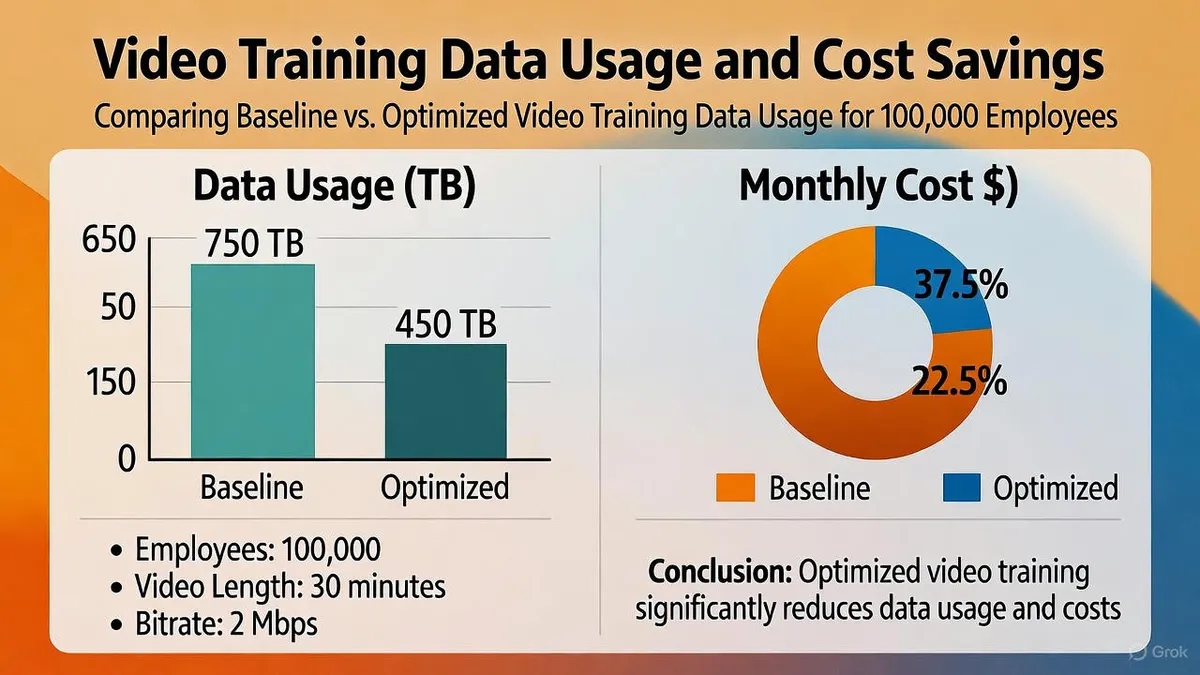
100K employees watching 30 minutes of training at average 2Mbps = 750TB = $37,500-112,500 monthly at standard CDN rates. With HEVC optimization, cut that by 40%.
The Big Picture
HLS has been refined over years of handling millions of concurrent streams across everything from Netflix to enterprise training platforms. The spec guidelines exist because they've been battle-tested. When something seems overly specific—like segment duration or keyframe alignment—there's usually a good reason backed by real-world failure cases.
Start simple: H.264 video with AAC audio, 6-second segments, and a few quality variants (1080p, 720p, 480p). Get that working, then add complexity (HEVC variants, multiple languages, HDR content, live streaming) as your needs evolve.
Your viewers don't think about HLS or codecs or bitrates. They just expect video to work
whether they're watching training on their iPhone during lunch, streaming the company earnings call on their AppleTV, or catching up on a missed presentation at 2am. Do it right, and that's exactly what happens.
Need Help Implementing This?
I've built HLS systems handling 100K+ concurrent viewers for enterprise platforms, consumer apps with millions of users, and live event broadcasts where buffering isn't an option. Whether you're adding video to your iOS app for the first time, scaling to handle global audiences, or solving complex enterprise requirements like multi-region compliance and audit trails, I can help you avoid the gotchas and ship faster.
The difference between "working" and "working reliably at scale" is usually about 100 details like the ones in this guide. I've learned them the hard way so you don't have to.
Let's talk if you're building something ambitious with video.
💬 Final Thought
Whether you’re building the next big streaming app or embedding video in a small iOS feature, mastering HLS will make you a better engineer — and a calmer one when things go wrong.
Apple designed it for resilience. Use that to your advantage.
🧡 Thank You
This newsletter just passed 1,000 followers in two weeks.
Your feedback keeps these deep dives going — and sharper each time.
If this helped you, share it with someone wrestling with video pipelines.
If you spotted something interesting or applied this in your project, share it — that’s what Swift in Practice is all about.
Let’s make iOS media simpler, one edition at a time
Resources
- Apple's HLS Authoring Specification
- AVFoundation Documentation
- Using Apple's HTTP Live Streaming (HLS) Tools
- RFC 8216 (HTTP Live Streaming Specification)
- FFmpeg Documentation
This article is part of Swift in Practice—a newsletter focused on real-world iOS development for apps that matter. Subscribe for more deep dives into the technical challenges that actually show up in production.
☕ Enjoying Swift in Practice? It's free and reader-supported. If an edition saved you some debugging time, you can buy me a coffee: https://buymeacoffee.com/swiftinpractice
Originally published as a Swift in Practice edition on LinkedIn. Comments and discussion happen there.